A Claude Code agent for your Zotero library
How I set up Claude Code to clean up and maintain my reference library, with the CLAUDE.md and prompts I use.
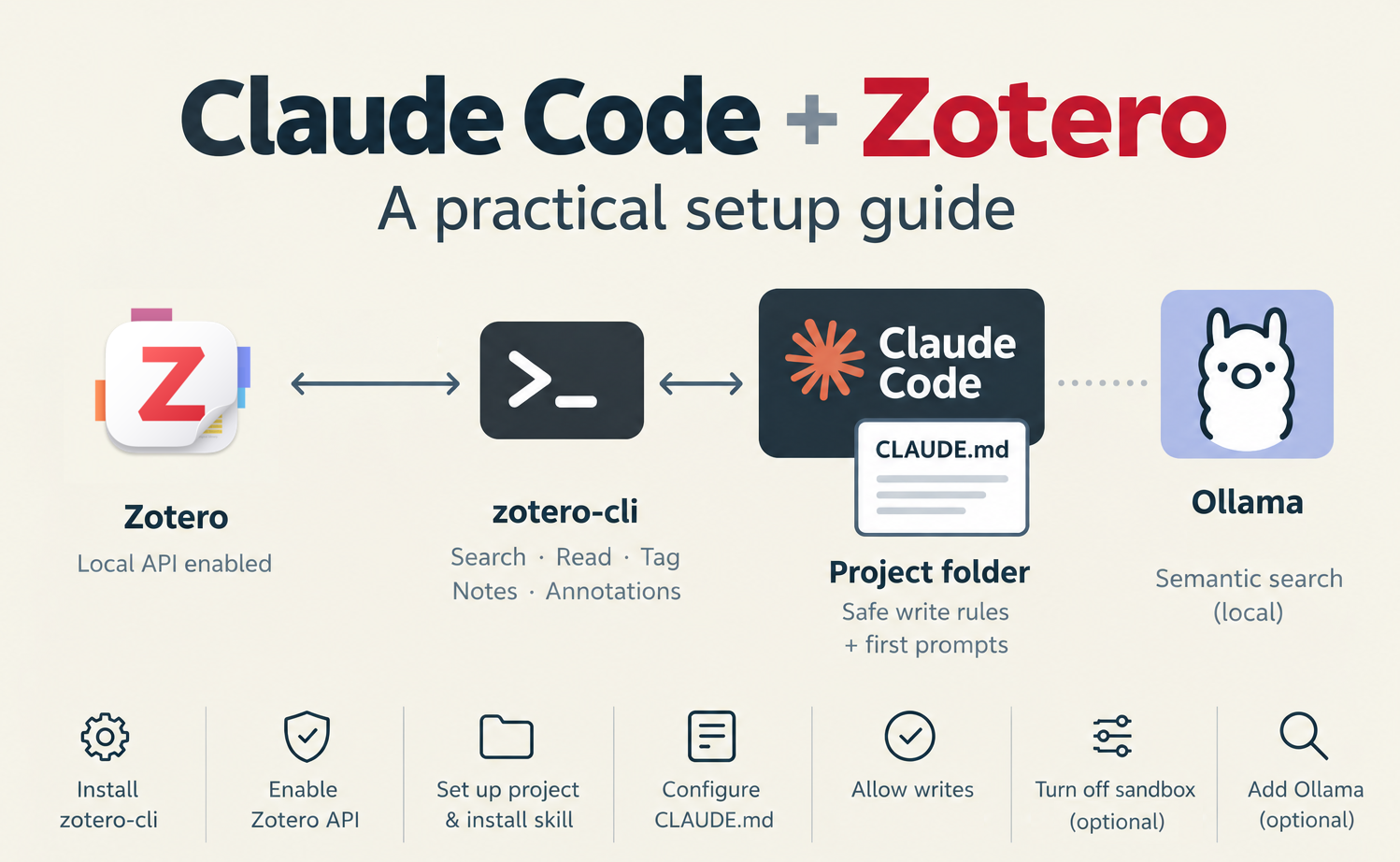
zotero-cli, a Claude Code project folder with CLAUDE.md, and optional semantic search with Ollama. Below it, the setup steps in order.If you already use Claude Code for your R analyses, you know the pattern: you describe what you want, the agent proposes changes, you review the diff, and you approve it. It turns out this pattern also suits a task most of us put off for years: cleaning up the Zotero library.
After enough years of importing from PubMed, publisher websites, old EndNote libraries and colleagues’ collections, my library was a mess:
- tags in five spellings of the same term
- MeSH headings like
*Models, Statisticaland keywords in three languages - leftover tags from old plugins
- child notes that were really import residue
- journal articles without DOIs
None of it is hard to fix. It’s just tedious, and that kind of tedious, rule-based work is where an agent helps most. The agent does the reading, comparing and diffing. I make the decisions and approve every change.
This post explains how I set it up, so you can copy what’s useful and skip the mistakes I made along the way.
Stack overview
The setup has four parts:
- Zotero desktop, with its local API turned on. The API lets programs on your computer talk to Zotero.
zotero-cli, a command-line tool from the zotero-mcp project. It can search, read and tag items, read annotations, and write notes.- A dedicated Claude Code project folder, holding a
CLAUDE.mdthat tells the agent who you are, how your library is organised and what it may change. - Optional: local semantic search using Ollama. This lets the agent find papers by meaning, not just by keyword.
The zotero-mcp project also offers an MCP server. With Claude Code I use the command-line tool plus an agent skill instead. An MCP server sends all of its tool descriptions with every single request. A skill is a short instruction file that Claude Code loads only when the task needs it. As long as the agent has a shell, the CLI is cheaper and just as capable.
The zotero-mcp can be used together with Claude Desktop if properly configured.
Setup
1. Install zotero-cli
I use uv to install Python command-line tools. The extras add semantic search and PDF handling:
uv tool install "zotero-mcp-server[semantic,pdf]"This installs zotero-cli (the tool the agent uses) and zotero-mcp (setup and maintenance commands).
2. Turn on Zotero’s local API
In Zotero, open Settings → Advanced and tick Allow other applications on this computer to communicate with Zotero. Then check that the CLI can see your library:
zotero-cli config3. Create a project folder and install the skill
Give the agent its own folder, separate from your analysis projects. This folder is its workspace: CLAUDE.md, a progress file, and its memory.
mkdir -p ~/agents/zotero-agent
cd ~/agents/zotero-agent
zotero-mcp install-skill --target claude
This copies a zotero-cli skill into the project’s .claude/skills/ folder. (--target claude-user installs it for all your projects instead.) Check that it’s there. I skipped this step at first. My CLAUDE.md told the agent to “use the zotero-cli skill”, but the skill only existed inside the Python package. Claude Code coped by calling zotero-cli directly and reading its --help, but it’s cleaner to install the skill and confirm that .claude/skills/zotero-cli/ exists.
4. Grant write access
Reading works right away. Writing (tags, notes) through the local API needs Zotero 10 or newer and a key, which you grant once in a Zotero dialog:
zotero-mcp authorize-localA dialog appears in Zotero. Click “Always Allow”, not “Allow”. “Allow” grants a key for exactly one write, which is useless for batch edits. I clicked the wrong button twice before working this out. You can check and revoke the key at any time:
zotero-mcp authorize-local --status
zotero-mcp authorize-local --revoke
5. Sandbox (optional)
If Claude Code’s sandbox is on, it blocks the connection to Zotero’s local API (localhost:23119), so some commands fail in confusing ways. I turned the sandbox off for this project only, in .claude/settings.local.json:
{
  "sandbox": {
    "enabled": false
  }
}
This is a trade-off. Without the sandbox, the agent’s shell commands run with your normal permissions. I accept it here because CLAUDE.md strictly limits what the agent may do (see below), and Claude Code still asks before running commands I haven’t allowed. If you’d rather keep the sandbox, look at its network settings instead.
6. Semantic search with Ollama (optional)
Keyword search finds the papers you already know how to describe. Semantic search also finds the ones that use different words for the same idea. With Ollama, the embeddings are computed on your own machine and nothing leaves it:
brew install ollama
brew services start ollama                 # keeps Ollama running in the background
ollama pull bge-m3                         # a multilingual embedding model
zotero-mcp setup --semantic-config-only    # pick Ollama as the embedding provider when asked
zotero-mcp update-db                       # build the search index
Library cleanup doesn’t need this. It becomes useful once you ask the agent to find related papers or gaps.
Drafting CLAUDE.md
You may already have a CLAUDE.md in your R projects, describing packages, folder layout and coding style. For a Zotero agent it matters even more, because the agent is working on years of curated material, not code under version control. Zotero has no git revert.
Here is a generic version of mine. Change the parts in angle brackets:
# Zotero Research Agent

## Role
You are my research assistant for my Zotero library. I am <your role and field>.
Access the library only through `zotero-cli` (see the zotero-cli skill).

## Topics in my library
- <Research project A>
- <Clinical / teaching topics>
- <Review projects>

## Tasks
1. **Synthesis from annotations**: Pull annotations by color across items or
   collections and synthesize them (e.g. all red annotations on a topic as a
   limitations overview).
2. **Library maintenance**: Find untagged or wrongly tagged items, duplicates,
   missing metadata. Propose fixes.
3. **Research and placement**: Find related papers in my library, point out
   gaps, suggest external papers (with DOI) I should add.

## Conventions

### Annotation color code
| Color  | Hex       | Meaning                                    |
|--------|-----------|--------------------------------------------|
| Yellow | `#ffd400` | Key finding / Result (what the paper says) |
| Red    | `#ff6666` | Limitation / Critique / Contradiction      |
| Green  | `#5fb236` | Adopt / Idea / Follow up (what I take away)|

Annotation comments are my own reasoning. Treat them as more important than
the highlight itself.

### Tag vocabulary
- `type/primary-study`, `type/systematic-review`, `type/narrative-review`,
  `type/position-paper`, `type/report`, `type/methods`
- `status/to-read`, `status/reading`, `status/read`
- Keyword tags: lowercase, plain English (acronyms and proper nouns keep
  their capitals).
- Do not invent new tag prefixes. Propose them to me instead.

### Language
All literature work in English. Talk to me in the language I write in.

## Synthesis notes
- Stored as Zotero notes. Title: `SYN: <topic>`.
- First line: one-sentence summary of the synthesis.
- Every claim cites its item with a Zotero link
  (`zotero://select/library/items/<KEY>`) and page if available.
- Clearly separate what papers state from your own inference
  (mark inference as *Inference:*).

## Write rules
- Reading is always allowed.
- Allowed writes: **tags and notes only**, and only after my explicit OK.
  Show the exact change first (item list, tag diff, full note draft).
  Batch proposals instead of asking item by item.
- Never: trash or delete items, merge duplicates, edit metadata, move items
  between collections, add new items. Propose these, I do them.
- Never access `~/Zotero` (database, storage) through the file system.
- Never invent references. If evidence is missing in my library, say so.

## Output style
Concise. No recaps at the end. Say when you are unsure or when the library
does not support a claim.
Some notes on why it looks like this:
- The write rules are the most important section. The agent may change only tags and notes, and only after I’ve seen the exact diff. Everything that is hard to undo (deleting, merging duplicates, editing metadata, moving items) it proposes, and I do it myself in Zotero. In practice I never felt this slowed things down. The agent’s real value is finding and listing the problems; clicking “Merge” myself takes seconds.
- “Batch proposals instead of asking item by item” is what makes it usable. Without that line you get asked about every paper.
- Keep the agent away from
~/Zotero. Zotero’s database must not be edited while Zotero is running, and the CLI is the supported way in. This one line rules out a whole class of disasters. - “Never invent references” matters most for the research tasks. When the agent suggests papers to add, it gives DOIs, and I check each one.
- A controlled tag vocabulary gives the agent a target. “Clean up my tags” is vague. “Map everything onto this vocabulary and tell me what doesn’t fit” is a task it can do well. The prefixes (
type/,status/) keep the structural tags apart from the topic keywords. - The annotation color code is only worth writing down if you use colors consistently. If you do, it unlocks the most interesting task: “give me all red annotations in collection X as a limitations overview”.
- Let CLAUDE.md grow. When the agent proposes a new vocabulary value and I agree, I ask it to add the value to CLAUDE.md straight away.
type/report(for grey literature such as assessment reports) andtype/methodsarrived this way during the first cleanup.
First prompts
These are close to the prompts I actually used, in order.
1. A read-only health check. Start without any writes, so you see what the agent sees and whether the connection works:
Read CLAUDE.md. Then do a read-only health check of my library:
size, top-level collections, existing tags compared to my tag vocabulary,
items with annotations but without a Literature Note, and the 5 most
annotated papers. No writes. Report briefly.
The result was eye-opening: none of my vocabulary tags were in use yet, a large share of the tags were noise, and many items had import leftovers attached.
2. Ask for a plan, not for action.
OK, what are your suggestions for a first run to clean and structure it?The agent proposed a run of separate batches: first remove obvious junk tags, then map informal type tags onto the vocabulary, then unify spelling variants, then classify untyped items. Each batch was small enough to review. Claude Code’s plan mode (Shift+Tab) works well here, because the agent can only read and plan until you approve.
3. Record what only you can do (optional).
At the end of a run there’s a list of things the agent mustn’t or can’t do: delete import-residue notes, fix broken metadata, create collections.
Record these open ToDos in PROGRESS.mdKeeping track across sessions
A cleanup takes several sessions, so you need a way to pick up where you left off:
PROGRESS.mdin the project folder: a status line per completed run, and a checklist of the things only you do in Zotero. Ask the agent to use clickablezotero://select/library/items/<KEY>links. One click jumps to the item in Zotero.- Claude Code’s memory holds what the agent learned: quirks of the CLI it ran into and the rules you agreed on. At the start of the next session it already knows them.
/compactwith a focus, e.g./compact with focus on suggestions for run 3, when a long run fills the context.
Next steps and tasks for the agent
With a cleaned library, the more interesting tasks open up: synthesis notes built from colored annotations (“all limitations noted in my papers on topic X”), and semantic search for related papers and gaps in a review project.
But start with the health check. It’s read-only, takes a few minutes, and will show you whether this approach is worth it for your library.